CDNetworks Documentation
Using Properties to Configure the Edge
A "property" is a configuration of one or more hostnames (domains) that need to be deployed to the CDN Pro edge servers. A property determines how you want the servers to obtain, cache, modify, and distribute your content to end users. The key elements of a property include:
- Service hostname(s) to be accelerated
- One or more origin servers
- Caching rules for different types of contents
- Modifications to the URL or HTTP header fields
- Whether HTTPS is required, TLS certificates, and TLS protocol version
Managing Properties
On the CDN Pro platform, each property is versioned to track the history of changes and allow rollback if needed. Each version can be deployed independently to the staging or production environment.
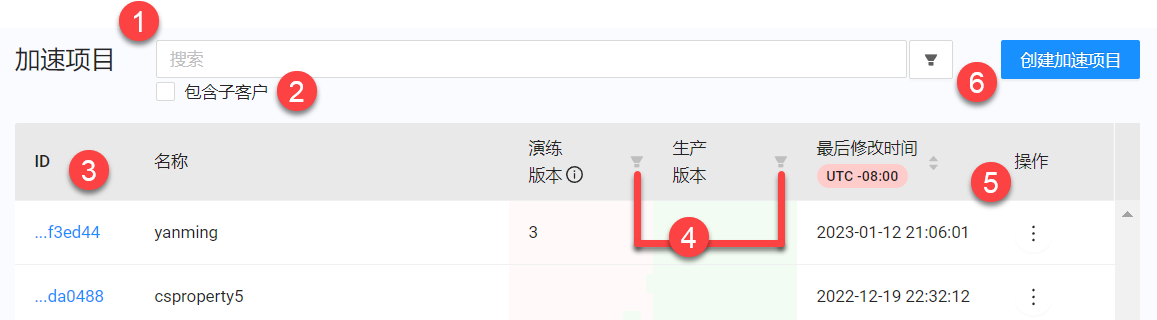
Using the Properties page, you can create, modify, validate, and deploy properties. You can also undeploy and delete properties if needed. To display the Properties page, click Edge Configurations in the left pane, and then select Properties. The following figure shows the key elements on the page, and the table following the figure describes them.
| Fields | Description |
|---|---|
| 1 | A search box for filtering properties that have been deployed to staging or production. You can filter properties by ID, name, description, hostname, or configuration settings. To enter multiple search strings, separate each one with a carriage return. Advanced filtering capabilities allow you to search specific configurations. For more information, see Filtering Properties. |
| 2 | Appears only for resellers, allowing them to search the properties of their child customers. |
| 3 | The list of all properties that are available to you. |
| 4 | Icons to filter properties based on whether they have been deployed to staging or production. |
| 5 | Drop-down lists to take actions on each property. |
| 6 | The button to create new properties. |
Filtering Properties
CDN Pro provides robust filtering capabilities that allow you to find properties that meet certain criteria.
Using the Carat
Typing the carat character at the beginning of a search string narrows matches to properties whose name, description, or hostnames fields start with the text following the ^. For example, ^domain matches the hostnames domain.com and domain123.com, but not abc.123domain.com.
Note: When searching for a property by ID, specify the entire ID, not just a portion of it.
Performing Advanced Searches
CDN Pro provides an advanced search filter that allows you to find properties that match specific conditions. This feature is particularly useful if you have many properties.
You can access the advanced search using the Advanced Filter icon next to the search box.
The advanced search allows you to search specific configurations by entering keyword and conditions in an Advanced Filter dialog box.
-
Click the Advanced Filter icon.

-
When the dialog box appears, complete the following fields.
| Fields/Buttons | Description |
|---|---|
| Search | To search by keywords, enter one or more keywords associated with the properties you want to find. A keyword can be a property ID, name, or description. |
| Add New + | To search based on conditions, click Add New +. Select a field name and operator from the first two lists. If a value is required, enter it in the rightmost field. Click Add New +. Repeat these steps for each additional filter condition you want to add. |
- After specifying your search criteria, click Search.
Observe the following guidelines when performing advanced searches:
- Searches on numeric and Boolean fields return an exact match.
- Searches on strings return full and partial matches.
- If a property has multiple versions, the property is included in the matched results if any of its versions matches the hasConfig conditions.
Property Actions
Each property has a vertical ellipsis in the Actions column. Clicking the ellipsis shows the available actions that can be performed on the selected property.
- Edit: Update the selected property.
- Compare Versions: Compare two property versions.
- Undeploy from Staging: Undeploy the selected property from the staging environment.
- Undeploy from Production: Undeploy the selected property from production.
- Delete: Delete the selected property.
- Deployment History: View the deployment history of the selected property.
- Clone: Copy settings into the Create a Property form to create a new property.
- Report: Run a report using the hostnames of the deployed property. This action is available only for properties that have been deployed to production.